

Ensuring there is pinging between the license server and client
On both the license server machine and client machine, go to Command Prompt using the keyword 'cmd'.

On the client machine, ping the license server machine (using the hostname / IP address) and vice-versa.
> Note: If it is not successful, there may be a Firewall (from the license manager / client) blocking the license manager. Proceed to the next section.

> Note: If it fails, there may be a network problem between the license manager and client. Alternatively, the Firewall Inbound Rule 'File and Printer Sharing (Echo Request - ICMPv4-In)' may be blocked. You will need to go to 'Windows Firewall with Advanced Security' window and check this Inbound Rules to allow this rule. Then try pinging the server again. If it happens, proceed to the next section. If it fails again, there is a persistent network connection issues between the license machine and client. (Please note that our support does not extend to rectifying these issues).
Ensuring that the Services are switched on – For DSLS users only
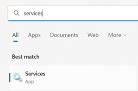
On the license manager machine, Go to 'Services'.
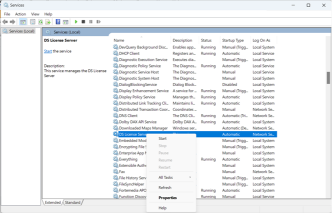
If it is DSLS, right click 'DS License Server' and press 'Start'.
Test to see if the software works. If not, proceed to the next section.
Ensure that the FlexNET is switched on – For FlexNet users only
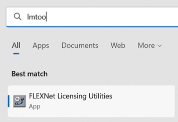
On the license manager machine, search 'LMTOOLS' and click 'FlexNET Licensing Utilities'.
Ensure at the 'Service/License File' tab, the affected service is clicked. Then go to 'Perform Status Enquiry'.
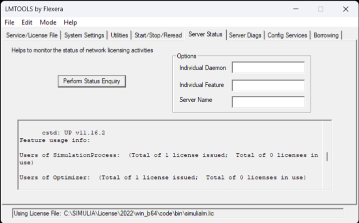
If the FlexNET Enquiry shows that the server is down, go to the 'Start/Stop/Reread', press 'Start Server'. Once started, check if the client can pick the license from the license manager. If not, proceed to the next section.
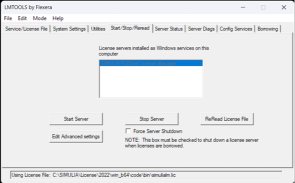
If the FlexNET Enquiry shows all licenses are available, proceed to the next section.
Allow Inbound and Outbound Rules in Windows Firewall
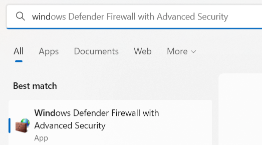
Search and go to 'Windows Firewall with Advanced Settings'.
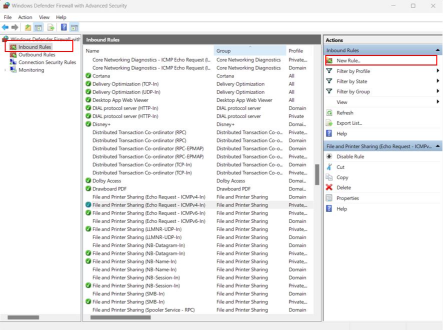
On the settings, go to 'Inbound Rules' and Add 'New Rule…'.
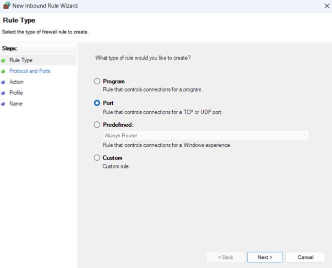
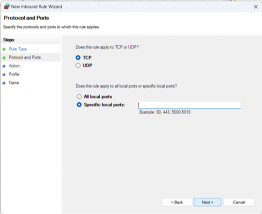
Click 'Port' and Click 'Next'.
Click 'TCP'. For specific local ports:
> Note: If FlexNET, type “27000-27010”, and if DSLS, type “4084, 4085”
Click the option 'Allow the connection'. Then click 'Next'.
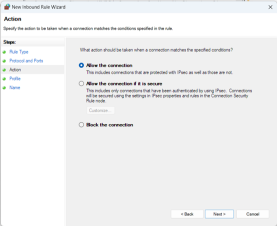
For the Profile, it is mandatory to tick 'Private' if your workplace has a private network. If you are under an enterprise domain, tick 'Domain'. The Public profile is not required. Press 'Next'. Type the name according to the license server you have – 'FlexNET' or 'DSLS'. The description can be added according to your necessities. Then press 'Finish'.
Optionally, add the same rule but for the 'Outbound Rules', then verify if your SIMULIA product can run successfully now
Author

Mohammed Zourob
Solutions Consultant - EMAG
Mohammed holds a Bachelor's in Electrical Engineering and an MBA. His expertise lies in power and renewable energy, electromagnetic simulations, and product life cycle management