

Licensing Server Setup on the Admin Host Machine
Run the CST setup 'setup.exe' executable file found in the setup folder.
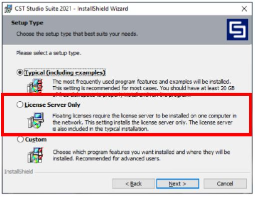
While installing please ensure that you click 'License Server' only.
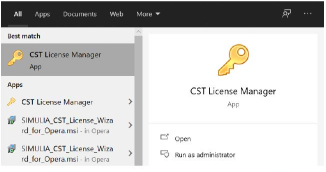
Once the License Server wizard has installed the license server, you will need to access the licensing manager by clicking ‘Start/Search’, typing ‘CST License Manager’ and clicking the best match.
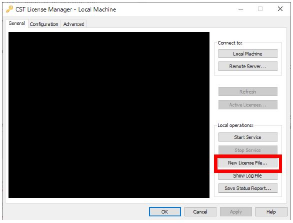
On the License Manager, click ‘New License File…’ and find the '.DAT' or '.LIC' file of your CST.
> Note: The CST License Manager will then successfully configure your license and the floating license is therefore active. You will then need to install CST on the machines and point the machines to the CST floating license server.
Pointing 'Users' Machines to the Server
Open CST Suite XXXX software.
> Note: XXXX Depends on your CST version.
Go to ‘File’ > ’License’. A License Management popup will appear.
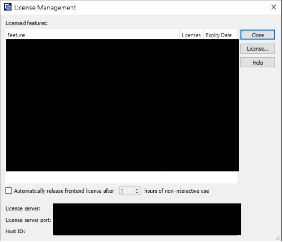
Click on ‘License…’. A ‘Specify License’ window will popup.
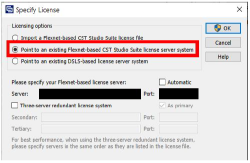
Click ‘Point to an existing Flexnet-based CST Studio Suite license server system’ and type the server address and port number of the hosting server. Press ‘OK’. The CST Studio Suite installed in the machine will now link to the server and retrieve the token for use.
Author

Mohammed Zourob
Solutions Consultant - EMAG
Mohammed holds a Bachelor's in Electrical Engineering and an MBA. His expertise lies in power and renewable energy, electromagnetic simulations, and product life cycle management