

Introduction
This blog is a guide for administrators, and BIOVIA (Materials Studio & Discovery Studio) users, whom prefer to reserve certain license features and tokens to a specific user or user group. Since BIOVIA License Pack 2022 employs FlexNet Licensing 11.16.6.0, Using the FLEXlm option file, you can specify exactly how license features or tokens are distributed in various ways, including host, user, display, and groups of users. To do this, keywords are associated with features and user data in a file called msi.opt.
> Note: The options file must be named msi.opt and is usually located in the Licenses folder.
>
> <span style="color: red;">WARNING:</span> Please make sure that all simulations are aborted/complete before proceeding with this guide as you might be prompted to shut down the license manager and shutting down the license manager while simulations are running will result in the license manager failing to retrieve those license tokens, which is called ‘hanged licenses’ and might cause errors with future token allocation. To resolve such the hanged licenses error, active jobs must be stopped, and license server must be shut down, then start it again.
How to create and use an options file?
Use the appropriate options listed in Options File Syntax to create the options file for a vendor daemon using any text editor, and save the file name to “msi.opt” (make sure it is not “msi.opt.txt”)
Locate the options file anywhere; however, it is recommended that the options file be placed in the same directory as the license file. For example:

- Add the path to the options file in the BIOVIA license file as the fourth field on the VENDOR line for the application’s vendor daemon. For example:
VENDOR msi PORT=1740 /Program Files (x86)/BIOVIA/LicensePack/share/data/server/msi.opt
- Open BIOVIA License Administrator. Go to: License server > Administration and click on Reread License.
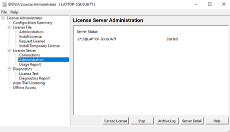
- Once rereading the license is completed, FLEXNet will successfully run the commands that were declared in the options file.
Options File Syntax
The following is an overview of the available options. Each line of the file controls one option.
| Option Keyword | Description |
|---|---|
| AUTOMATIC_REREAD | Turn off automatic reread of licenses at midnight. |
| ACTIVATION_LOWWATER | Controls the number of licenses that cannot be borrowed or transferred. |
| ACTIVATION_EXPIRY_DAYS | Controls the activation request based on the expiration dates mentioned in options file during activation. |
| BORROW_LOWWATER | Set the number of BORROW licenses that cannot be borrowed. |
| DAEMON_SELECT_TIMEOUT | Define the vendor daemon’s timeout limit. |
| DEBUGLOG | Write debug log information for this vendor daemon to the specified file (version 8.0 or later vendor daemon). |
| EXCLUDE | Deny a user access to a feature. |
| EXCLUDE_BORROW | Deny a user the ability to borrow BORROW licenses. |
| EXCLUDE_ENTITLEMENT | Deny a user the ability to activate licenses held in a fulfillment record in trusted storage. |
| EXCLUDEALL | Deny a user access to all features served by this vendor daemon. |
| EXCLUDEALL_ENTITLEMENT | Deny a user the ability to activate all licenses held in a fulfillment record in trusted storage. |
| FQDN_MATCHING | Set the level of host name matching. |
| GROUP | Define a group of users for use with any options. |
| GROUPCASEINSENSITIVE | Set case sensitivity for user lists specified in GROUP keywords. |
| HOST_GROUP | Define a group of hosts for use with any options (version 4.0 or later). |
| INCLUDE | Allow a user to use a feature. |
| INCLUDE_BORROW | Allow a user to borrow BORROW licenses. |
| INCLUDE_ENTITLEMENT | Allow a user to activate all licenses held in a fulfillment record in trusted storage. |
| LINGER | Allow a user to extend the linger time for a feature beyond its check in. |
| MAX | Limit usage for a particular feature/group—prioritizes usage among users. |
| MAX_BORROW_HOURS | Change the maximum borrow period for the specified feature. |
| MAX_CONNECTIONS | Configures the maximum number of connections to the vendor daemon at any point in time. |
| MAX_OVERDRAFT | Limit overdraft usage to less than the amount specified in the license. |
| NOLOG | Turn off logging of certain items in the debug log file. |
| REPORTLOG | Specify that a report log file suitable for use by the FlexNet Manager license usage reporting tool be written. |
| RESERVE | Reserve licenses for a user or group of users/hosts. |
| TIMEOUT | Specify idle timeout for a feature, returning it to the free pool for use by another user. |
| TIMEOUTALL | Set timeout on all features. |
Specifying License Restrictions Using Type
Some option keywords restrict who may use licenses or where licenses may be used. These options take a type argument that specifies what the restriction is based on.
- When using the option keywords EXCLUDE, EXCLUDE_ENTITLEMENT, EXCLUDEALL, EXCLUDEALL_ENTITLEMENT, EXCLUDE_BORROW, INCLUDE, INCLUDE_ENTITLEMENT, INCLUDEALL, INCLUDEALL_ENTITLEMENT, INCLUDE_BORROW, MAX, and RESERVE, the following values can be used for type:
- USER—User name of the user executing the BIOVIA application. User names are case sensitive and cannot contain spaces.
- GROUP-Name of the group of users executing the BIOVIA application. (Before you can restrict an option by a specific group, the options file must also include a GROUP option that defines the group.)
- HOST-System host name or IP address where the BIOVIA application is executing. Host names are not case sensitive. The IP address can contain wildcard characters.
- When using the option keywords EXCLUDE, EXCLUDE_ENTITLEMENT, EXCLUDEALL, EXCLUDEALL_ENTITLEMENT, EXCLUDE_BORROW, INCLUDE, INCLUDE_ENTITLEMENT, INCLUDEALL, INCLUDEALL_ENTITLEMENT, INCLUDE_BORROW, MAX, and RESERVE, the following values can be used for type:
- DISPLAY-Display where the application is displayed. On UNIX, DISPLAY is /dev/ttyxx (which is always /dev/tty when an application is run in the background) or the X-Display name. On Windows, it is the system name or, in the case of a terminal server environment, the terminal server client name. Display names are case sensitive.
- INTERNET-IP address of the system where the application is executing.
- PROJECT-LM_PROJECT environment variable set by the user who is executing the BIOVIA application. Project names are case sensitive.
Options File Examples
The following are examples of how to use the options file to customize token usage.
Example 1: User sam is limited to a maximum of 6 licenses of the Adsoprtion Module in Materials Studio (which uses the feature MS_adsorption):
MAX 6 MS_adsorption USER sam
Example 2: You can reserve a specific number of features for a predefined user group. These two lines in the options file reserve 10 licenses of Cantera Module in Materials Studio (which uses the feature MS_cantera) for the user group called Department1:
GROUP Department1 sam charlie anne karen larry
RESERVE 10 MS_cantera GROUP Department1
Example 3: These next examples show how to use the options file to reserve DS Chemistry licenses for DS Chemistry users, in Discovery Studio:
GROUP DSChem sam susan amand yoshi
RESERVE 4 DS_Chemistry GROUP DSChem
RESERVE 4 DS_ChemistryClient GROUP DSChem
Refrences
- BIOVIA. (2021, 17 August). Customize Usage Access. Retrieved from License Pack 2022 Online Help.
- FlexNet Publisher 2020 R1 (11.16.6) License Administration Guide. (2020). Flexera.
Author

Besma Benzamia
Senior Solution Consultant
Besma is a chemical engineering graduate with a focus on separation processes, materials, and chemical reactions. She is currently working as a senior solutions consultant, focusing on molecular modeling and simulation using Materials Studio and COSMOsuite.