

Installing DSLS License Server
Run the DS License Server Setup Wizard.
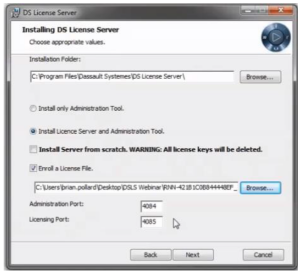
Toggle the options as shown in the snapshot below and enroll your license file.
After the installation is completed, a pop-up for the License Server Connection Parameters will come up as shown below. Put the server’s name in the first box and click connect.
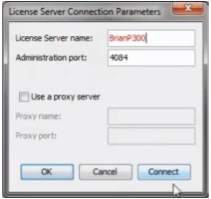
> Note: If the license server is within the user’s node machine, name it 'localhost'
Connecting DSLS License server
Once it is successfully installed and configured, the DSLS licenses server are ready to point to the clients to connect to the server, follow the steps below to add a DSLS text file to each client computer:
On Windows, on each client computer, create the directory folder 'Licenses' in the ProgramData folder as shown in the below picture
> Note: The C:/ProgramData is a hidden folder by default on the PC, and you will need to toggle the Show Hidden Folders option on: C:/ProgramData/DassaultSystemes/Licenses
Go to the directory and create a text file '.txt' named: 'DSLicSrv'.
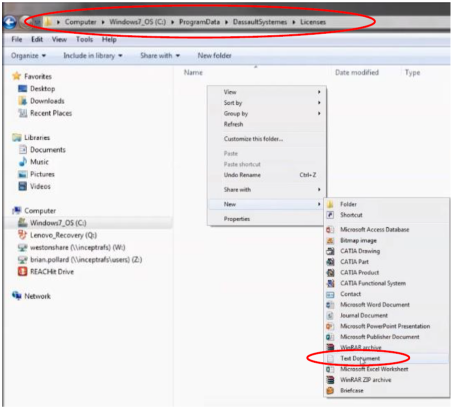
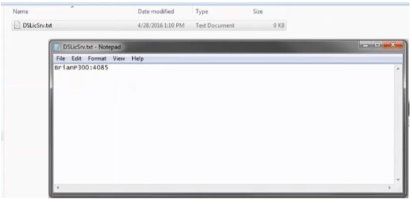
Inside the created DSLicSrv.txt file, enter 'hostname:4085'. Make sure to replace 'hostname' with the name or the IP address of your server.
Finding your Server Name
To find your server name, open the License Administration Tool in the host computer and double click on the listed server to open Server Configuration as shown below.
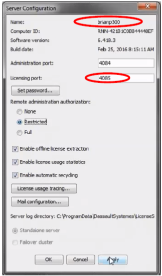
The server name can be declared as:
- a simple hostname, for example: lw5ses1dsy:4085
- a full qualified domain name, for example: lw5ses1dsy.dsy.com:4085
- an IPV4 address, for example: 10.232.70.1:4085
- an IPV6 address, for example: [2a00:4b00:220:172::103]:4085
- The port number is the license server listening port, not the administration port.
For example, the content of the DSLicSrv.txt file should look like the below snapshot:
> Note: If the license server is on the same computer as the client computer, you must use the special keyword localhost instead of the computer name, for example: localhost:4085